




Are you tired of paying for expensive cable packages that offer limited choices? Across Canada, households are rapidly moving away from traditional broadcasting to embrace modern digital streaming solutions.
Need help getting started? Follow our complete IPTV setup guide for step-by-step instructions on every device.
This shift allows viewers to access high-definition content and international programming with ease. Learning how to setup iptv on smart tv hardware is the most effective way to unlock a superior viewing experience.
By making this change, you gain control over your media consumption. Whether you use a Samsung, LG, or Android device, configuring an iptv on smart tv service is simpler than you might think. This guide will help you navigate the process to ensure you get the most out of your home entertainment system.
Key Takeaways
- Traditional cable is being replaced by flexible digital streaming options in Canada.
- Setting up modern services provides access to a wider range of international channels.
- High-definition quality is a standard benefit of these new viewing platforms.
- Users can easily configure their devices to enjoy a personalized media library.
- Transitioning to these services helps Canadian households save on monthly entertainment costs.
Understanding IPTV Technology and Legal Considerations in Canada
Navigating the landscape of digital streaming requires both technical knowledge and an awareness of local laws. As more households transition to internet-based viewing, understanding the infrastructure behind your screen becomes increasingly important for a smooth experience.
The Basics of Internet Protocol Television
Internet Protocol Television, or IPTV, delivers television content over a broadband network rather than through traditional satellite or cable formats. Instead of receiving a constant stream of data, your device receives small packets of information that are reassembled in real-time.
To view this content, you need a reliable iptv player installed on your smart device. This software acts as the bridge between the incoming data stream and your television screen, ensuring that video and audio remain synchronized. High-speed internet is the backbone of this technology, as it prevents buffering and maintains high-definition quality.
Navigating Canadian Copyright and Streaming Regulations
When using iptv canada services, it is vital to prioritize legal compliance. Canadian copyright laws protect content creators and distributors, meaning that accessing unauthorized streams can lead to significant issues. Users should always verify that their chosen service provider holds the necessary licenses to broadcast the content they offer.
Distinguishing between legitimate services and unauthorized platforms is a key skill for any viewer. Legitimate providers typically offer transparent subscription models and official support channels. In contrast, services that offer “too good to be true” pricing for premium content often operate outside of legal frameworks.
| Feature | Legitimate Service | Unauthorized Service |
|---|---|---|
| Content Licensing | Fully Authorized | Often Pirated |
| Service Reliability | High Uptime | Frequent Outages |
| Customer Support | Professional Help | Non-existent |
| Security | Encrypted Data | High Risk |
By choosing a reputable iptv player and ensuring your subscription is through a verified source, you protect your home network. Staying informed about the regulations in iptv canada ensures that your digital entertainment setup remains both functional and secure for years to come.
Essential Requirements Before Starting Your IPTV Setup
A successful streaming journey begins with ensuring your home network is ready for the task. Before you begin the installation, you must confirm that your hardware meets the necessary technical standards. Proper preparation of your network environment is the most critical step to avoid future performance bottlenecks when using a smart tv iptv.
Checking Your Internet Connection Speed
High-definition streaming requires a stable and consistent data flow. In Canada, most reliable services recommend a minimum download speed of at least 25 Mbps for HD content, while 4K streams often demand 50 Mbps or higher. Consistent bandwidth is far more important than peak speed for preventing buffering.
You should perform a speed test using a reliable online tool while connected to your television’s network. If your results are lower than expected, consider moving your router closer to the device or using a wired connection. Ensuring your network can handle the load is essential for a smooth smart tv iptv experience.
Verifying Smart TV Compatibility
Not every television is built to handle modern streaming applications. You must verify that your specific model supports the necessary software before attempting any configuration. Most modern sets running Tizen, WebOS, or Android TV are fully capable, but older hardware may lack the required processing power.
To ensure your device is ready, follow these quick verification steps:
- Check the App Store: Open your TV’s native store to see if popular media players are available for download.
- Review OS Updates: Ensure your television is running the latest firmware version provided by the manufacturer.
- Confirm Hardware Specs: Verify that your model has enough internal storage to accommodate new applications.
Taking these precautions helps you avoid frustration during the setup process. By confirming your hardware is compatible, you set the stage for a reliable smart tv iptv setup that delivers high-quality entertainment every time you turn on your screen.
How to Set Up IPTV on Smart TV Devices
Unlocking the full potential of your smart TV begins with understanding how to install new applications. Whether you are looking to enhance your viewing experience or simply organize your favorite channels, mastering the interface is the first step. By following these guidelines, you can successfully prepare your device for a seamless streaming experience.
Accessing the Official App Store
Most modern televisions come equipped with a built-in marketplace designed for easy software management. To begin, press the Home button on your remote control to open the main dashboard. From here, navigate to the icon labeled “Apps” or “Store” to browse the available library.
Once inside the store, use the search function to look for your preferred iptv app. Simply select the application and click “Install” to add it to your home screen. This official method is the safest way to ensure compatibility when you want to use iptv on smart tv services.
Enabling Developer Mode for Third-Party Apps
Sometimes, the specific software you need might not appear in the standard store. In these cases, you may need to enable Developer Mode to sideload files. This process allows you to install applications from external sources, which is a common requirement for advanced users.
To enable this, navigate to your TV’s “Settings” menu and locate the “About” or “Device Information” section. You will typically need to click on the “Build Number” or “Software Version” seven times to unlock the hidden developer options. Once enabled, you can manage permissions to install files from unknown sources, which is essential for those learning how to setup iptv on smart tv configurations that fall outside the standard app store offerings.
| Installation Method | Ease of Use | Security Level | Best For |
|---|---|---|---|
| Official App Store | Very High | High | Standard iptv app users |
| Sideloading (APK) | Moderate | Medium | Advanced customization |
| USB Installation | Low | Medium | Offline file management |
Installing IPTV Apps on Samsung Smart TVs
Samsung Smart TVs provide a powerful gateway to digital entertainment when configured correctly. The Tizen operating system offers a robust and responsive interface that handles high-definition streams with ease. By following the right installation steps, you can turn your television into a comprehensive media center.
Using the Tizen OS App Store
To begin, navigate to the home screen of your Samsung device and locate the “Apps” icon. This is where you will find the official store to search for your preferred iptv on smart tv software. Simply type the name of your desired player into the search bar to see if it is available for your specific region.
Once you locate a compatible application, select “Install” to add it to your home screen. It is important to ensure your firmware is up to date to avoid compatibility issues. A smooth installation process is the first step in learning how to setup iptv on smart tv effectively.
Loading External Playlists via Smart IPTV
Many users prefer using dedicated players like IPTV Smarters Pro to manage their content. These applications allow you to organize your channels and movies into a user-friendly interface. When you launch the app, you will typically see an option to “Login with Xtream Codes API,” which is the most efficient way to sync your data.
“Reliable streaming is not just about the speed of your internet, but the quality of the player you choose to manage your content library.”
Using a high-quality smart tv iptv player ensures that your EPG data and channel logos load correctly. This creates a professional viewing experience that rivals traditional cable services. Always verify that your chosen iptv app is updated to the latest version to maintain security and performance.
Steps for Configuring M3U Links
If your service does not use an API, you may need to manually input your M3U playlist link. Access the settings menu within your player and look for the “Playlist” or “Remote Playlist” section. You will need to enter the URL provided by your iptv provider along with a descriptive name for the list.
After saving the configuration, the application will fetch your channel list from the server. This process might take a few moments depending on the size of your playlist. Once finished, your channels will appear in the main dashboard, ready for immediate playback.
| Player Name | Ease of Use | API Support | M3U Support |
|---|---|---|---|
| IPTV Smarters | High | Yes | Yes |
| Smart IPTV | Medium | No | Yes |
| TiviMate | High | Yes | Yes |
Configuring IPTV Services on LG WebOS Televisions
Setting up your preferred streaming services on an LG television is a straightforward process thanks to the intuitive WebOS interface. This platform is widely recognized for its user-friendly design, making it an excellent choice for managing your digital channel lists. By following a few simple steps, you can successfully enjoy iptv on smart tv without any technical headaches.
Navigating the LG Content Store
To begin, press the Home button on your remote to access the main dashboard. From there, locate and open the LG Content Store, which serves as the central hub for all your software needs. You can use the search function to find the specific how to setup iptv on smart tv application you intend to use for your streaming.
Setting Up Popular IPTV Players
Once you have installed your chosen smart tv iptv application, launch it from your app list. Most professional players will display a unique MAC address on the initial welcome screen. It is essential to note this address, as it acts as the digital fingerprint for your television.
Syncing Your Provider Credentials
With your MAC address in hand, visit the official website of your chosen iptv player provider. You will typically need to enter this address into their portal to link your subscription to the device. After you have uploaded your M3U playlist or configuration link, return to your television and restart the iptv app to refresh the data.
Once the application reloads, your channel guide should populate automatically with your subscribed content. This seamless integration ensures that your viewing experience remains smooth and reliable. You are now ready to explore your favorite digital channels directly on your LG display.
Setting Up on Android TV and Google TV Devices
Android TV and Google TV platforms offer unparalleled freedom for users looking to customize their streaming experience. Unlike more restrictive operating systems, these devices allow you to install a wide variety of software to enhance your iptv on smart tv setup. Whether you are a casual viewer or a power user, the flexibility of the Android ecosystem ensures you can access the content you want.
Downloading Apps from the Google Play Store
The most reliable way to how to setup iptv on smart tv is through the official Google Play Store. This method is safe, fast, and ensures that your software remains updated automatically.
Simply navigate to the search icon on your home screen and type in the name of your preferred smart tv iptv application. Once you locate the software, select “Install” to add it to your device. After the download finishes, you can launch the program directly from your app drawer.
Sideloading IPTV Applications via APK Files
Sometimes, the specific software you need might not be available in your regional app store. In these cases, you can sideload an application using an APK file, which is the standard installation package for Android.
Before you begin, you must enable “Install Unknown Apps” in your security settings. This permission allows your device to accept files from sources other than the official store. Always ensure you download these files from reputable websites to maintain the security of your television.
Using Downloader for Efficient Installation
The most efficient way to manage sideloading is by using the Downloader app. This tool acts as a web browser and file manager, making it easy to fetch any iptv player directly from a URL.
Once you install Downloader, simply enter the direct link to the APK file you wish to use. The app will handle the download and prompt you to install the file immediately. This streamlined process is the preferred method for users who want to avoid complex manual transfers.
| Installation Method | Ease of Use | Security Level | Best For |
|---|---|---|---|
| Google Play Store | Very High | Maximum | Standard iptv app users |
| Downloader App | High | Moderate | Advanced customization |
| USB Sideloading | Low | Moderate | Offline file management |
Selecting the Best IPTV Service for Canadian Viewers
Finding the right iptv provider is the most critical step in ensuring a smooth and enjoyable streaming experience. With the market flooded with various options, Canadian users must carefully weigh their specific needs against the features offered by different platforms. Making an informed choice helps you avoid common pitfalls like poor stream quality or frequent service interruptions.
Evaluating Channel Variety and Content Quality
When you begin your search for the best iptv service, start by reviewing the channel lineup. A high-quality service should offer a diverse range of content, including local Canadian news, major sports networks, and international entertainment channels. Ensure that the provider includes the specific genres you watch most often to get the best value for your money.
Content quality is just as important as the number of channels provided. Look for services that prioritize high-definition (HD) streams to ensure a crisp picture on your smart TV. Reliable providers often offer a mix of 1080p and 4K content, which is essential for modern high-resolution displays.
Comparing Subscription Pricing and Reliability
An iptv subscription should be affordable without sacrificing the stability of your connection. Many providers offer monthly, quarterly, or annual plans, so compare these costs to see which fits your budget best. Always check for trial periods, as these allow you to test the service before committing to a long-term contract.
Reliability is the backbone of a great viewing experience. You want a service that maintains consistent uptime, especially during live events or peak viewing hours. Use the table below to compare key factors when evaluating potential services for your home.
| Feature | Standard Service | Premium Service |
|---|---|---|
| Channel Count | 500+ Channels | 5,000+ Channels |
| Streaming Quality | 720p / 1080p | 1080p / 4K UHD |
| Customer Support | Email Only | 24/7 Live Chat |
| Trial Availability | None | 48-Hour Trial |
By focusing on these core metrics, you can confidently select an iptv canada solution that meets your entertainment demands. Remember that the cheapest option is not always the most reliable, so prioritize providers with a proven track record of performance. Taking the time to research your options will lead to a much more satisfying and stable streaming setup.
Managing Your IPTV Subscription and Playlist Files
Proper file management is the secret to a seamless and frustration-free streaming experience. When you maintain an active iptv subscription, the way you organize your data directly impacts how well your device performs. Taking a few minutes to understand your files can save you hours of troubleshooting later.
Understanding M3U and EPG Formats
Most streaming services rely on two primary file types to deliver content to your screen. The M3U file acts as a playlist that tells your player exactly where to find the iptv channels you want to watch. Without this file, your device would not know how to connect to the broadcast servers.
The EPG, or Electronic Program Guide, is equally important for a clean interface. It provides the metadata that populates your screen with show titles, descriptions, and air times. Think of the M3U as the map and the EPG as the schedule for your journey.
Apple user? Check our IPTV on iPhone and Apple TV guide for iOS setup steps.
Using a Firestick? Follow our IPTV Firestick setup guide to get streaming in minutes.
“Digital organization is not just about tidiness; it is about ensuring that your technology works for you rather than against you.”
Updating Your Channel Lists Regularly
Streaming links often change due to server updates or provider maintenance. If you do not refresh your list, you may encounter dead links or missing streams. Regularly updating your iptv channels ensures that your library remains current and functional.
Most modern players allow you to set an automatic refresh interval for your iptv subscription data. This simple setting prevents the frustration of clicking on a channel only to find a black screen. Keeping your files updated is the best way to maintain a high-quality viewing library over the long term.
| File Type | Primary Function | Benefit |
|---|---|---|
| M3U | Channel Streaming | Access to live feeds |
| EPG | Program Metadata | View show schedules |
| XML | Data Formatting | Syncs guide info |
Optimizing Streaming Quality and Network Performance
Achieving a flawless streaming experience requires more than just a fast internet plan. While many modern smart TVs offer impressive display capabilities, the actual quality of your content depends heavily on your home network environment. Consistent performance is the key to avoiding frustration during your favourite shows.
Reducing Buffering with Wired Connections
Wireless signals are often prone to interference from walls, other electronic devices, and distance. If you experience frequent buffering, switching to a wired Ethernet connection is the most effective solution. This direct link provides a stable path for data, ensuring that your stream remains uninterrupted even during peak usage hours.
By bypassing the fluctuations common with Wi-Fi, you create a dedicated lane for your media traffic. Most smart TVs feature an Ethernet port on the back, allowing for a simple plug-and-play setup. This small change often eliminates the need for expensive network upgrades.
Adjusting Video Settings for High-Definition Streams
To enjoy a professional-grade experience, you must ensure your device settings match your internet capabilities. For a high-quality 4K experience, we recommend a stable connection of at least 25 Mbps. If your network speed is lower, manually adjusting the stream quality within your IPTV app can prevent constant loading screens.
Always keep your TV firmware updated to the latest version provided by the manufacturer. Updates often include critical performance patches that improve how your device handles high-definition data streams. Regularly checking your settings ensures that your hardware is always ready for the best possible picture quality.
| Resolution | Recommended Speed | Connection Type |
|---|---|---|
| Standard Definition (SD) | 5 Mbps | Wi-Fi or Wired |
| High Definition (HD) | 10 Mbps | Wired Recommended |
| 4K Ultra HD | 25 Mbps | Wired Required |
Troubleshooting Common IPTV Connection Issues
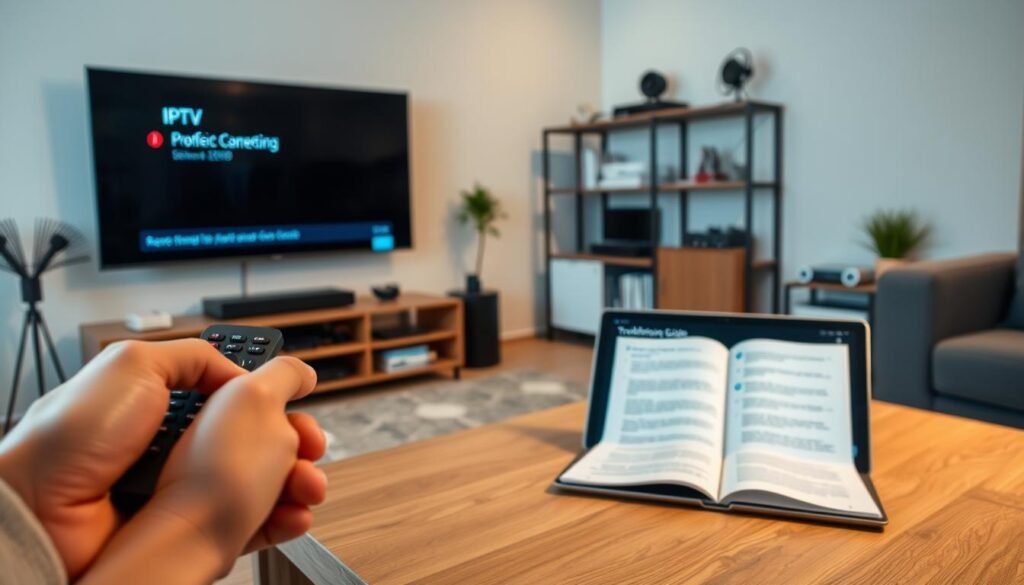
Technical hiccups are a reality of digital entertainment, but most issues have simple, effective solutions. Even with a perfect setup, you might occasionally face interruptions while trying to access your favorite iptv channels. By following a few logical steps, you can minimize downtime and get back to your content quickly.
Resolving Authentication Errors
Authentication errors often stem from minor input mistakes when configuring your service. If you encounter a “Check URL” error, double-check the M3U link for extra spaces or missing characters that might have occurred during entry. These small errors prevent the iptv app from reaching the server successfully.
Ensure your subscription status is active through your provider’s portal. Sometimes, an account might be locked due to a payment delay or a device limit being reached. Always verify that your login credentials match the information provided by your service host exactly.
“Technology is best when it brings people together and solves problems rather than creating new ones.”
Fixing Frozen Screens and Audio Sync Problems
Frozen screens usually indicate a struggle with network bandwidth or a temporary server overload. If your stream stops unexpectedly, try restarting your router to refresh the connection to your iptv app. A wired connection is often more stable than Wi-Fi for high-definition iptv channels.
Audio sync issues can often be resolved by clearing the cache within your device settings. If the problem persists, force-closing the application and reopening it can reset the synchronization process. Refer to the table below for a quick summary of common fixes.
| Issue Type | Primary Cause | Recommended Fix |
|---|---|---|
| Authentication Error | Incorrect URL or Login | Verify M3U link and credentials |
| Frozen Screen | Network Instability | Restart router or use Ethernet |
| Audio Sync Lag | App Cache Overload | Clear cache and restart app |
Security Best Practices for IPTV Users
Maintaining your digital privacy is essential when you start using an iptv subscription. As you explore various streaming options, protecting your personal data from prying eyes becomes a critical part of the experience. By following a few simple security habits, you can enjoy your favourite content without worrying about potential digital threats.
Using a VPN to Protect Your Privacy
A Virtual Private Network (VPN) is the most effective tool for securing your streaming traffic. When you connect to a VPN, your data is encrypted, which prevents your internet service provider from monitoring your specific viewing habits. This added layer of security ensures that your online activity remains completely private and anonymous.
Beyond privacy, a VPN can help you bypass regional restrictions that might otherwise limit your access to content. When selecting a service, look for providers that offer:
- Strong encryption protocols like AES-256.
- A strict no-logs policy to ensure your data is never stored.
- High-speed servers to prevent buffering during high-definition playback.
Avoiding Malicious IPTV Providers
Not every iptv provider you encounter online is legitimate or safe. Some services may host malicious software or attempt to harvest your personal information through insecure payment portals. To ensure you are choosing the best iptv service, you should always conduct thorough research before committing to a long-term plan.
Be wary of platforms that offer suspiciously low prices or lack clear contact information. A reputable iptv provider will typically offer a professional website, transparent customer support, and secure payment methods. Keep these red flags in mind to protect your device:
- Unsolicited emails or pop-up ads promoting “too good to be true” deals.
- Websites that lack HTTPS encryption in the browser address bar.
- Requests for payment via untraceable methods like cryptocurrency only.
By staying vigilant, you can easily identify the best iptv service for your needs while keeping your home network secure. Always prioritize your safety to ensure your iptv subscription remains a source of entertainment rather than a security risk.
Conclusion
Transitioning to an IPTV service on your Samsung, LG, or Android TV marks a significant shift in how you consume media. This process empowers you to break free from rigid cable contracts while gaining total control over your viewing habits.
Your hardware performance relies heavily on the quality of your chosen stream provider. Selecting a reputable service ensures that your high-definition content remains stable and clear during peak viewing hours.
Prioritizing digital security remains a vital step for every Canadian viewer. Using a trusted VPN protects your personal data and keeps your network activity private while you explore global content libraries.
Take a moment to review your current playlist files and network settings to maintain peak performance. Regular updates to your software and channel lists will keep your entertainment experience smooth and enjoyable for years to come.
We invite you to share your experiences with different IPTV players or streaming configurations. Engaging with the community helps others navigate the complexities of modern television technology with greater confidence.

Leave a Reply